
Start here
Test install
- 2–4 cores
- 4 GB RAM
- 20 GB free space
- SSD recommended
Good for trying Arciin and testing uploads.
Your server, your control.
No installer to babysit, no cloud account. Paste one line on your Linux server — Arciin prepares PostgreSQL, Redis, storage, API, web, and worker for you.
One-line install$ curl -fsSL https://get.arciin.com/install.sh | bashDebian · Ubuntu · WSL · Docker · then open http://localhost
install.sh
What the script does
Claim your Arciin instance.
After the script finishes, open the printed URL on your LAN. Enter your setup token, name the instance, create the owner account, and choose where files live. Setup locks forever after the first successful claim — no public signup, no cloud account.
First user becomes OWNER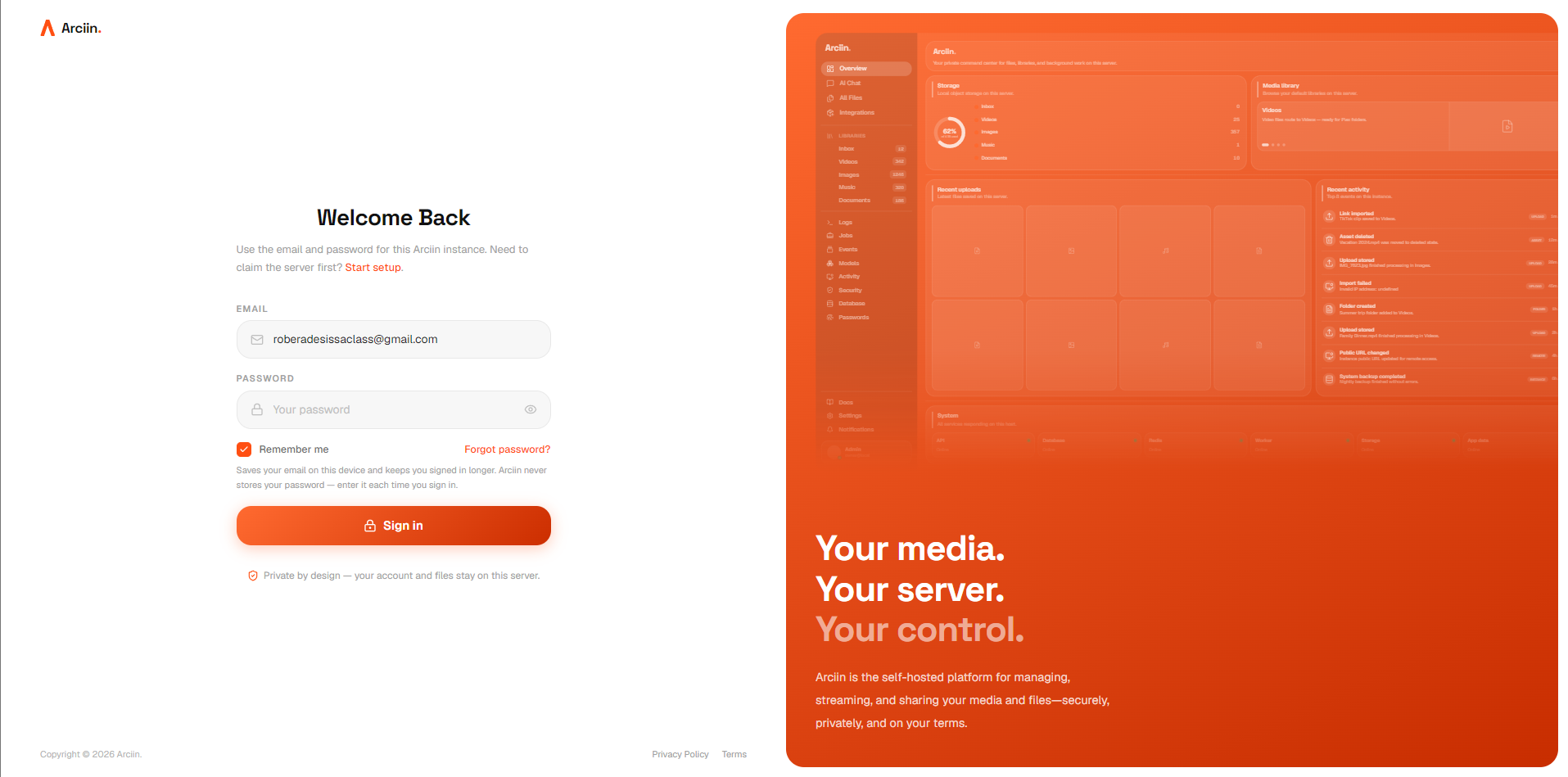
Default libraries appear immediately — Videos, Images, Music, Documents, and Inbox. Drag files anywhere in the dashboard and Arciin classifies them for you.
Install flow
Four steps — most people are past step two in under five minutes on a fresh Linux box.
Step 01
One curl command on Debian, Ubuntu, WSL, or Docker. Dependencies, storage paths, and services are configured automatically.
api · web · worker · postgres · redis
01
One curl command on Debian, Ubuntu, WSL, or Docker. Dependencies, storage paths, and services are configured automatically.
02
Visit the printed URL on your LAN — typically http://localhost:3000 or your server IP. No external signup.
03
Enter ARCIIN_SETUP_TOKEN, name your instance, create the owner account, and choose your storage root.
04
Default libraries appear, uploads work globally, mobile PWA can pair, and you can connect AI models on the Models page.
Install methods
Fastest on a fresh Debian, Ubuntu, or WSL host. Installs Docker if it is missing, pulls the Arciin images, and starts every service for you.
$ curl -fsSL https://get.arciin.com/install.sh | bashSystem requirements
Arciin runs on your hardware. Cloud AI works on normal servers. Local AI, large libraries, and 4K transcoding need real RAM, disk, and often a GPU.
Supported OS
One command, or drive Compose yourself
Start here
Good for trying Arciin and testing uploads.
Recommended
Best for most peopleBest for daily self-hosted use — libraries, thumbnails, metadata jobs, mobile uploads, vault, APIs, and Plex/Jellyfin folder routing.
Local AI
Best for small local models (e.g. Ollama) and personal AI workflows. Cloud AI still works on lighter hardware.
Media + AI
Best for larger libraries, local AI, vision, and media workflows where model + media jobs share one machine.
Production
Best for teams, production use, heavier 4K media workflows, and multiple concurrent jobs.
Storage & network
Specs above are about compute. These details cover disks and connectivity — separate from which hardware tier you pick.
/srv/arciin-storage/arciinBefore you size hardware
These notes sit outside the size cards so you can match the tier above to how you actually run AI and media.
Cloud AI vs local AI
Cloud AI works on normal Arciin hardware because the model runs through your connected provider. Local AI runs on your server, so RAM, VRAM, model size, quantization, and context length matter. For local AI, 16 GB RAM is the starting point; 32 GB+ is recommended for a smoother experience with larger models, vision, or media workflows.
4K media note
Arciin organizes your media folders. Plex or Jellyfin handles playback. Direct play is usually light, but 4K transcoding can require a strong CPU or hardware acceleration. For serious media use, use wired Ethernet and a GPU or iGPU that supports transcoding.
After install
On Windows, Desktop discovers your server, pairs once, and can back up this computer.
Install the companion app on your phone and pair with a six-digit code on your network.
Add OpenAI, Anthropic, Gemini, DeepSeek, or local Ollama keys on the Models page.
Drop files anywhere in the dashboard — Arciin classifies and routes them to libraries.
Create local users with Owner, Admin, Member, or Viewer roles — no per-seat billing.